
Clip Inventory
Exports every visible clip on your selected video tracks to an Excel spreadsheet — with thumbnails, reel names, timecodes, and durations — so you have a clean starting point for adding VFX shot codes and other metadata by hand.
Handles "unconsolidated" timelines
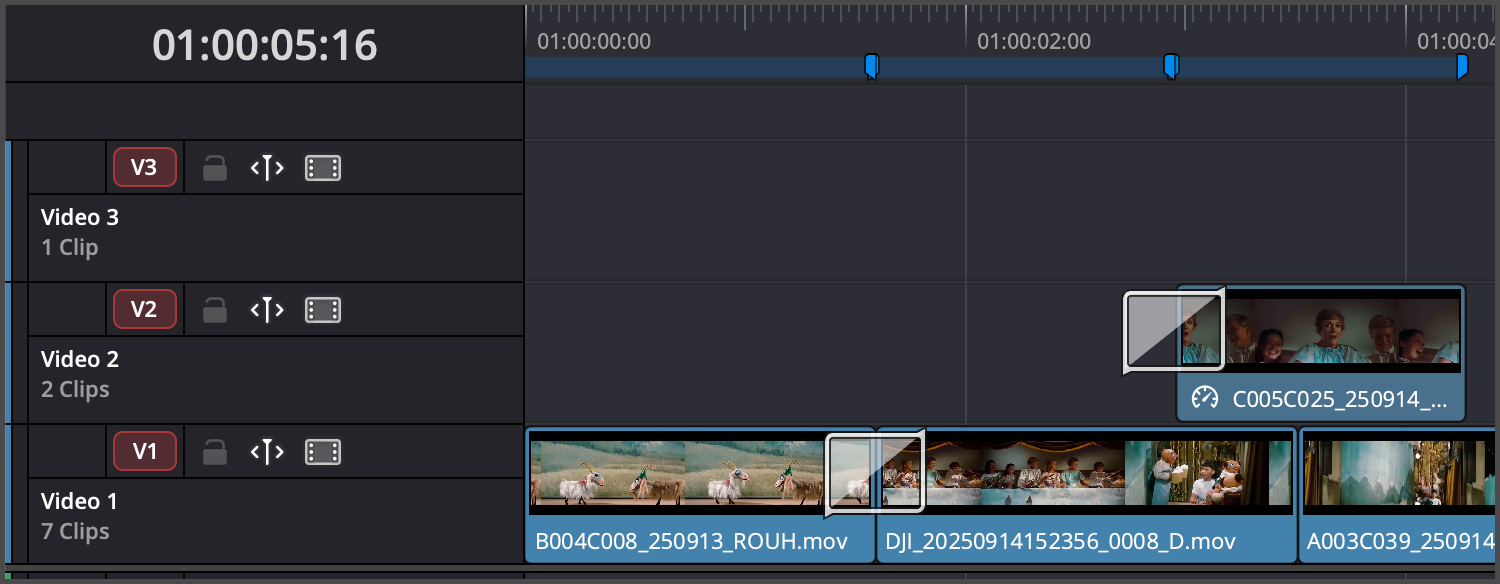
Clip Inventory accounts for multi-track occlusion (a clip on a higher track hides what's underneath it).
Launching it
Workspace → Scripts → Edit → 01 Clip Inventory, with a timeline open in Resolve's Edit page.
In the following example, shot footage is on video track 1 and 2.
- See the Export a Clip Inventory workflow for the full step-by-step including what to do with the spreadsheet afterward.
Fig. 1 Select tracks with shot content
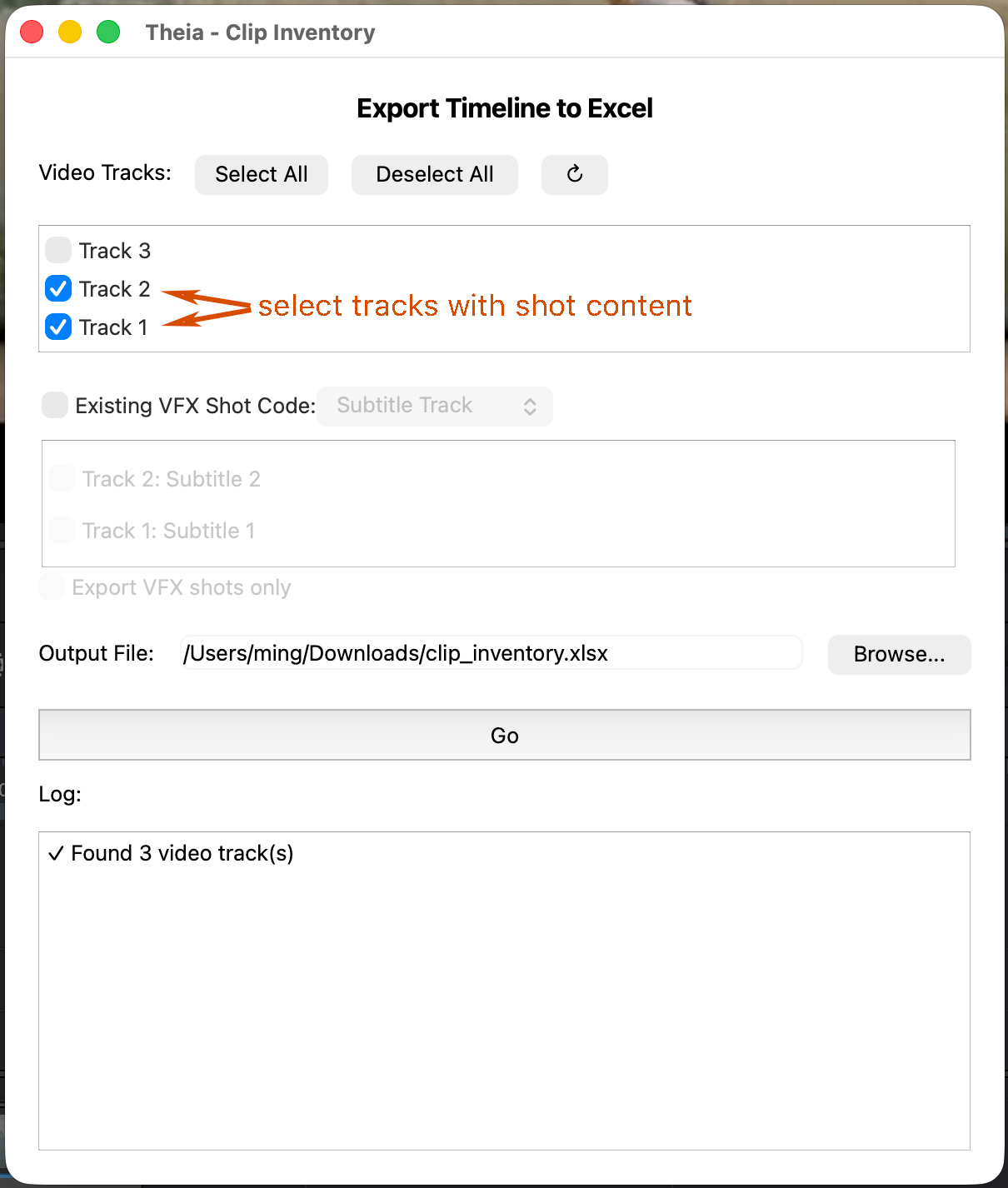
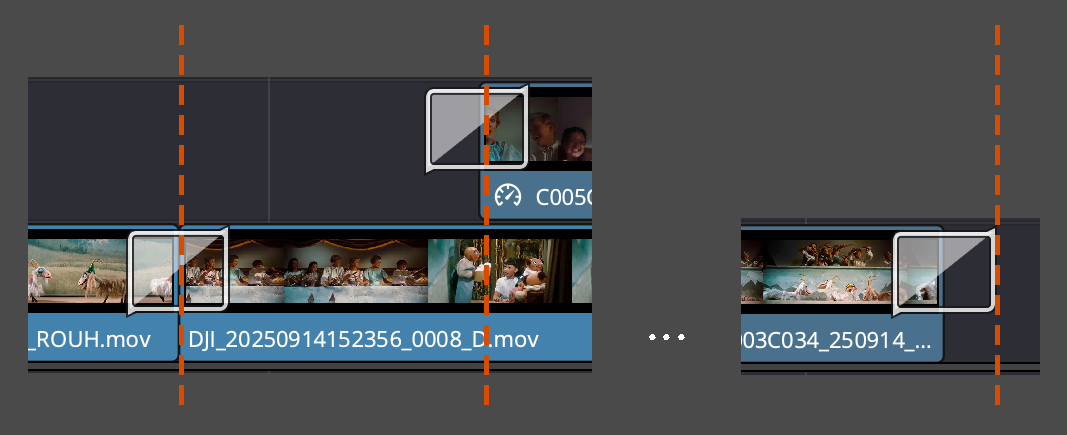
Fig. 2 How Clip Inventory interpret cut points
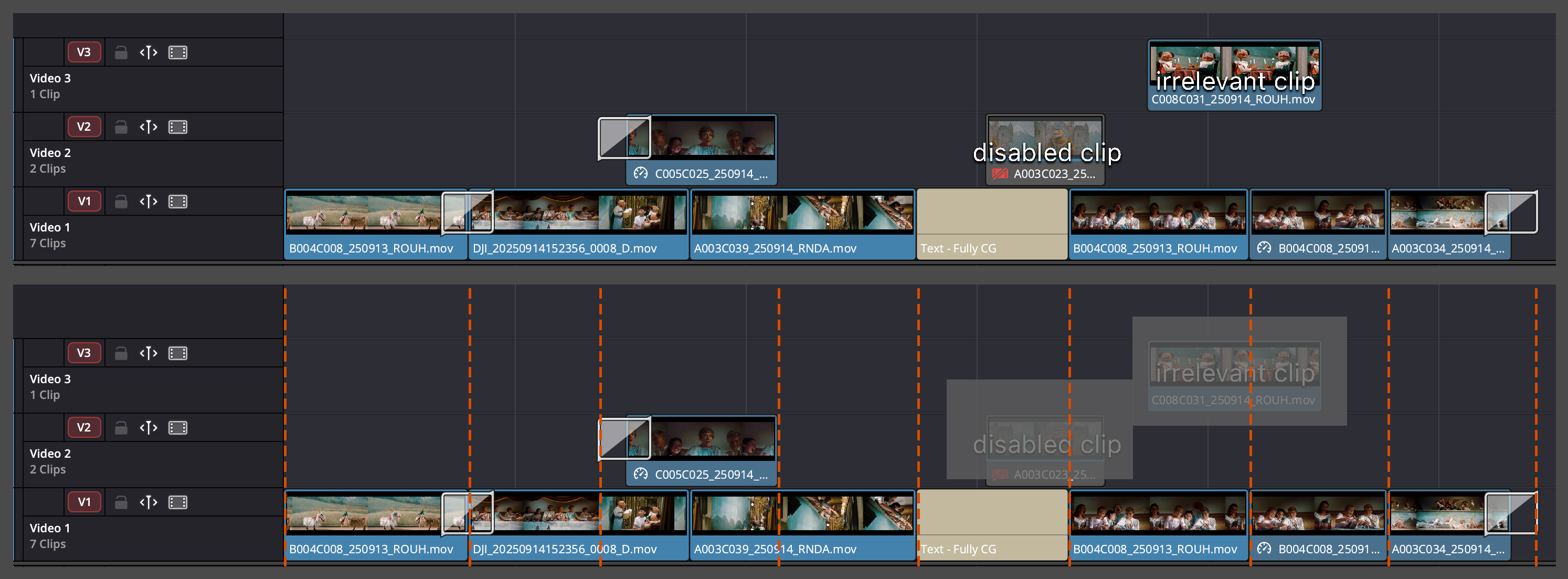
Fig. 3 Exported Clip Inventory Excel sheet
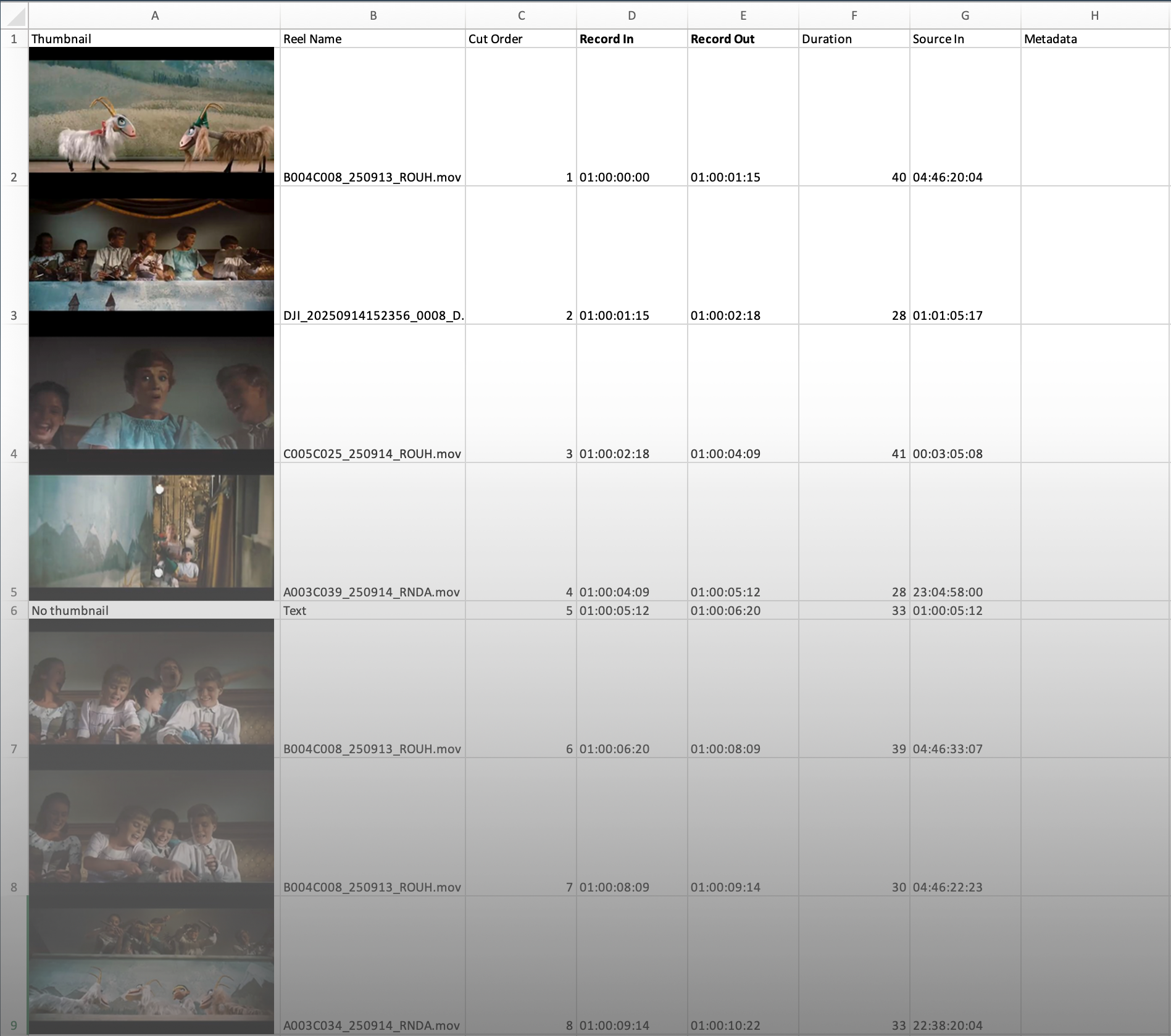
Fig. 4 Read existing VFX shot codes from a subtitle track
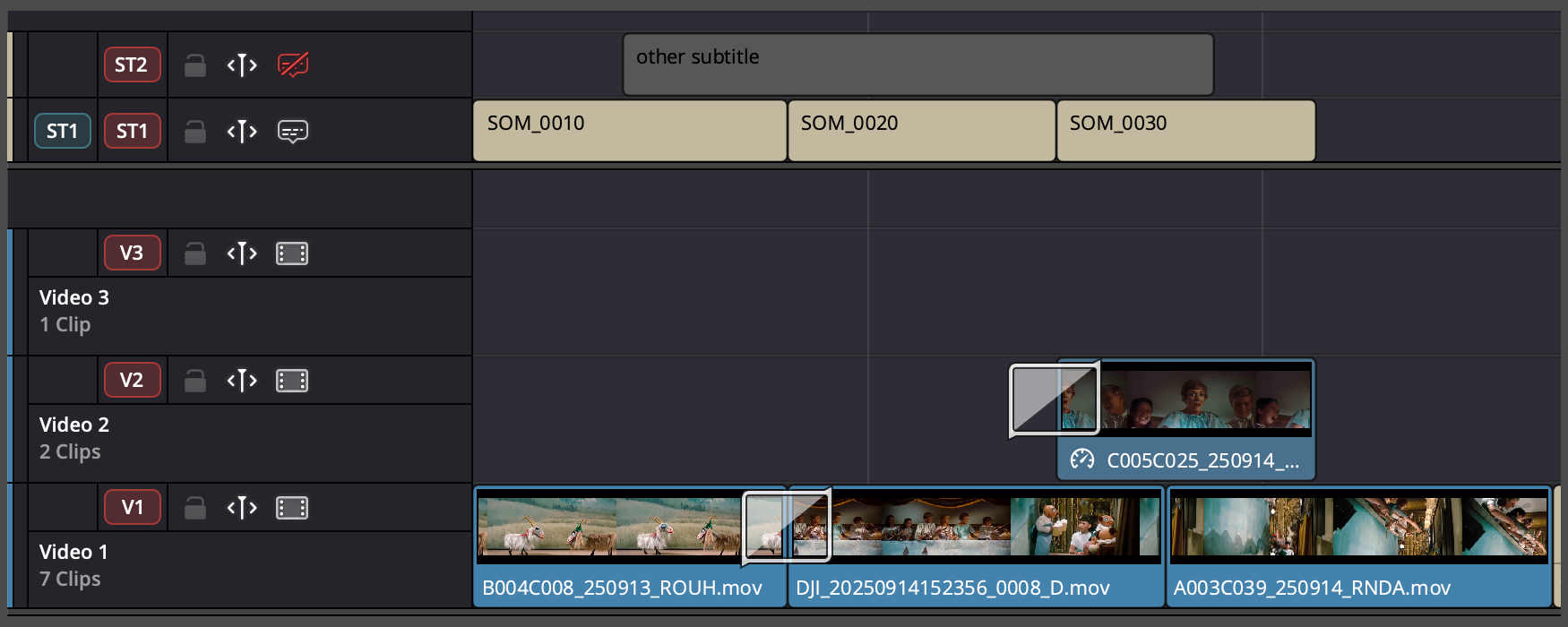
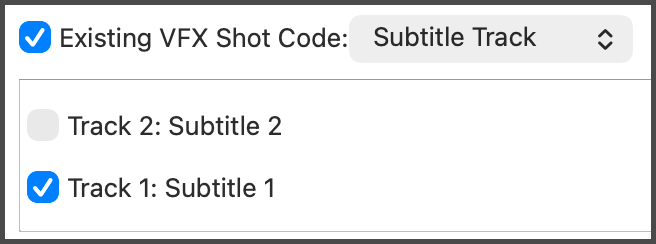
Fig. 5 Read existing VFX shot codes from duration markers

Interface reference
Video Tracks
A checklist of every video track on the current timeline. All tracks are checked by default.
- ↻ (refresh) — re-reads the track list from Resolve. Use this if you make changes or open a different timeline while the Theia window is already open.
- If no timeline is open, or Theia can't reach Resolve at all, the list falls back to a single "Track 1" checkbox so the window still opens.
Only clips on checked tracks are considered. Unchecked tracks are treated as if they don't exist.
Existing VFX Shot Code
If your timeline already has VFX shots marked in a subtitle track or with duration markers, you have the option to only pull existing shot codes into the export. When checked, a dropdown lets you choose the source:
- Subtitle Track — reads shot codes from a subtitle track's text. Checking this reveals a second checklist of subtitle tracks on the timeline; pick exactly one (selecting a different one automatically deselects the previous choice).
- Duration Marker — reads shot codes from duration markers instead of a subtitle track.
Export VFX shots only (enabled only when "Existing VFX Shot Code" is checked) restricts the export to just the clips that have a shot code from the selected source, skipping everything else.
Output File
Where the .xlsx file gets saved. Defaults to ~/Downloads/clip_inventory.xlsx. Use Browse... to pick a different location, or type a path directly.
Go
Starts the export. The log panel below streams progress live: which tracks are being processed, which clips are visible vs. occluded, and how transitions were classified.
What ends up in the spreadsheet
| Column | Contents |
|---|---|
| Thumbnail | A frame grabbed from the in point of the clip on the timeline. |
| Reel Name | The clip's reel / source name from Resolve's media pool. |
| Cut Order | Sequential position in the timeline. |
| Record In / Record Out | Timeline (record) timecode of the clip's visible range. Keep them named "Record In" / "Record Out" if you rename columns, since Add Metadata auto-detects them by that name. |
| Duration | Length of the clip. |
| Source In | Source timecode of the clip at the in point of its visible range. |
| VFX Shot Code | Shot codes read from the subtitle track or duration marker. Only present if "Existing VFX Shot Code" was enabled. |
| Metadata (column H onward) | Left blank. This is where you fill in your own VFX shot codes, vendor assignments, descriptions, etc.. |
Editorial details
Transitions - anything Resolve labels as a dissolve, wipe, or fade - are handled depending on their relation with the clip. If the transition is between two clips (even when the two clips are on different tracks), it's treated as a hard cut; if the transition is between a clip and nothing, the transition is considered part of the shot.
Segments of non-linear retimes are handled as individual clips:
- If the non-linear retime is done by keyframing within a clip, the clip appears as 1 row in the spreadsheet;
- if the non-linear retime is done by retiming consecutive clips within a shot, the shot appears as multiple rows in the spreadsheet.
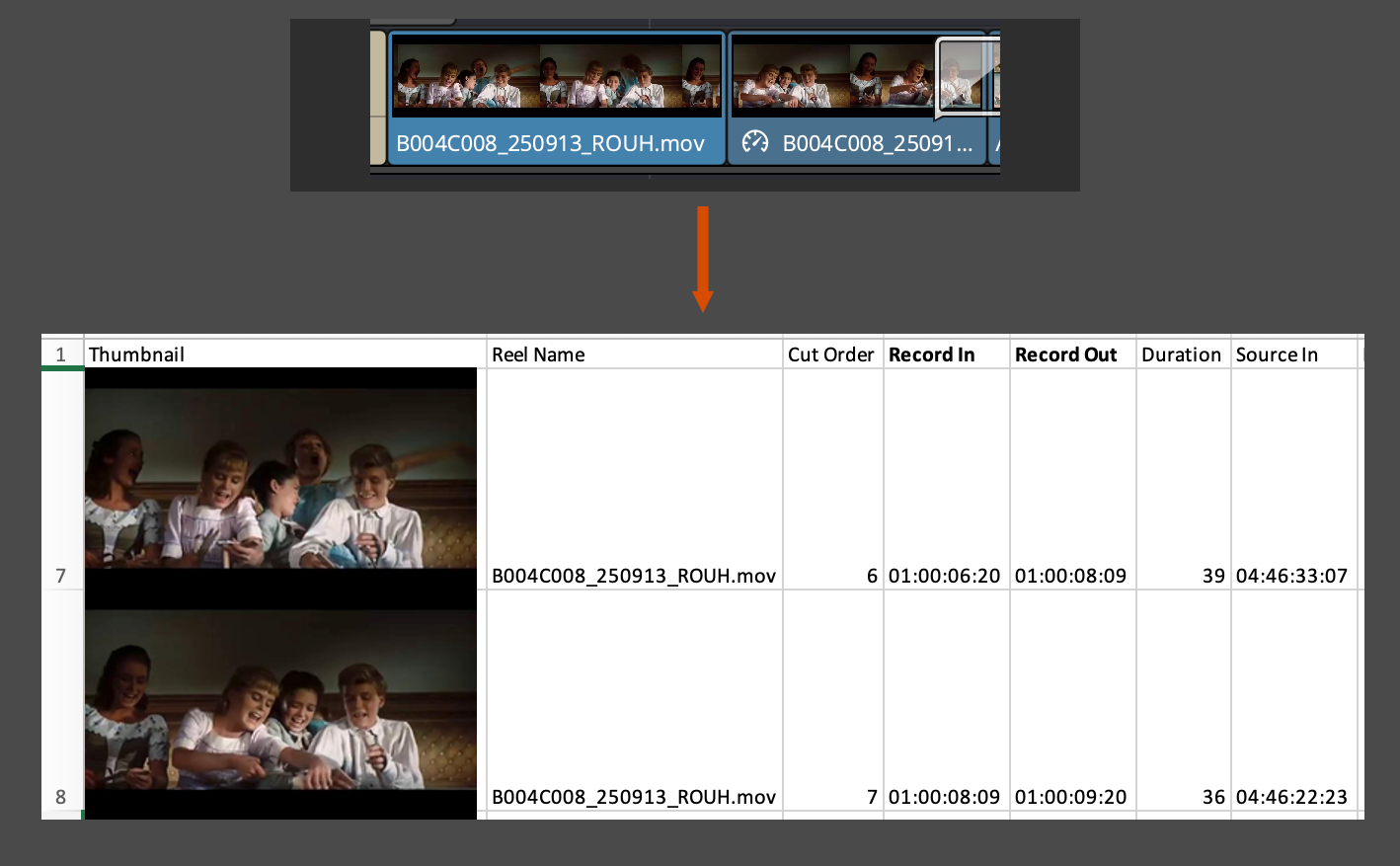
In the above case, combine the two rows into one row in Excel.
Known problems
- On the first run, the very first thumbnail might get lost in space. Re-running it usually solves the problem.